LiveKit + Gemini Live: How to Build a Real-Time Voice Agent
Gemini Live lets an AI agent hear and speak in one model, and LiveKit carries the conversation from a browser, a mobile app or a phone line. Together they make a voice agent with fewer moving parts than a speech-to-text, LLM and text-to-speech pipeline. This guide covers when realtime is the right choice, setup, working agent code, tools, phone calls through LiveKit SIP, turn-taking, current model options, costs from Google's price list, and what to check before production.
Quick answer
How do you build a voice agent with LiveKit and Gemini Live?
To build a voice agent with LiveKit and Gemini Live, install livekit-agents with the Google plugin, create an AgentSession whose LLM is google.realtime.RealtimeModel, and run it as a LiveKit Agents worker. Gemini Live hears the caller's audio and speaks directly, without separate speech-to-text and text-to-speech. LiveKit carries the call from browsers, apps or phone lines through LiveKit SIP, and your worker adds tools such as CRM lookups and booking.
What you are building
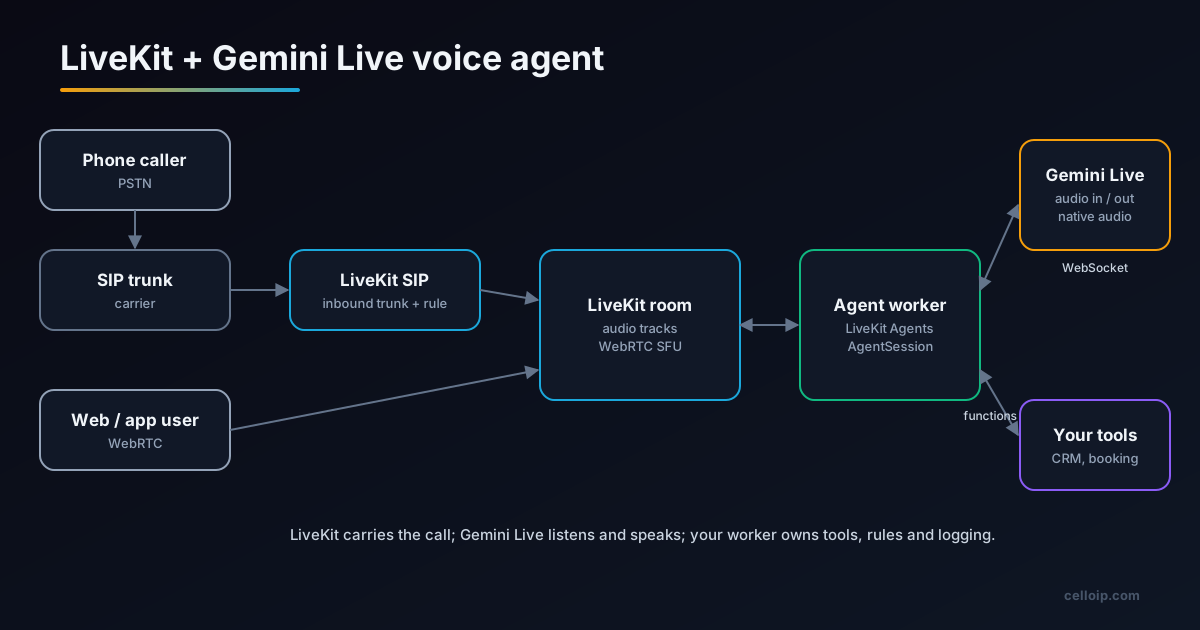
A voice agent built on LiveKit and Gemini Live has three parts. LiveKit is the real-time transport: a WebRTC media server (SFU) where callers and the agent meet in a room, with SDKs for web and mobile and LiveKit SIP for phone calls. The agent worker is your Python program, built with the LiveKit Agents framework, which joins the room, applies your instructions and tools, and logs what happens. Gemini Live is Google's real-time model: the worker streams the caller's audio to it and plays back the audio it returns.
The difference from a classic voice agent is that there is no separate speech-to-text or text-to-speech step. A native audio model hears tone and timing directly and speaks with natural pacing, which tends to make conversations feel less robotic and removes two network hops. The trade-off is less control: you choose from the model's voices, and you depend on one provider for listening, thinking and speaking.
If you are new to LiveKit voice agents, our LiveKit voice agents guide covers the pipeline approach and the framework basics; this guide focuses on the Gemini realtime path.
Realtime vs pipeline: which to choose
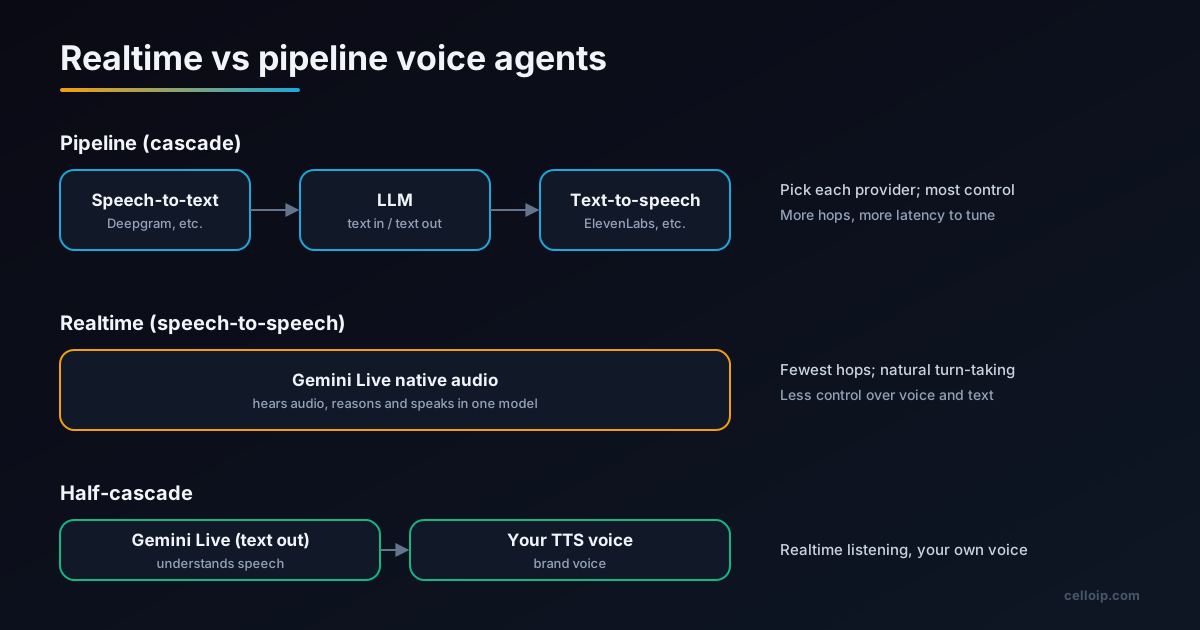
| Factor | Realtime (Gemini Live native audio) | Pipeline (STT → LLM → TTS) | Half-cascade |
|---|---|---|---|
| Moving parts | One model | Three providers | Two |
| Conversation feel | Natural pacing and interruptions | Good, with careful tuning | Natural listening, chosen voice |
| Voice choice | The model's built-in voices | Any TTS voice, including custom | Any TTS voice |
| Accent-specific speech recognition | Not separately tunable | Choose the best STT per language | Not separately tunable |
| Transcripts for logging | From the model's transcription output | From the STT step | From the model |
| Vendor dependence | One provider for everything | Spread across providers | Two providers |
| Best for | Fast, natural assistants, receptionists, support | Brand voice, regulated scripts, tricky accents | Natural listening with a brand voice |
A practical rule: prototype on realtime because it is quick to build and sounds good, then test it against your hardest calls, such as noisy lines, strong accents, long account numbers and callers who interrupt. If it handles them, keep it. If not, the same LiveKit worker can switch to a pipeline with different speech providers without changing your tools or telephony. Our voice AI latency and barge-in guide explains how to measure the difference.
Setup
1. Create a LiveKit project
Use LiveKit Cloud or a self-hosted LiveKit server, and note the URL, API key and secret.
2. Get Gemini credentials
Create a Gemini API key, or set up a Google Cloud project and service account for Vertex AI.
3. Install the agent framework
Install livekit-agents with the Google extra in a Python environment.
4. Write the agent
Create an Agent with instructions and tools and an AgentSession that uses google.realtime.RealtimeModel.
5. Run and test in a browser
Start the worker in development mode and talk to it from the LiveKit Agents playground or your own web client.
6. Connect phone numbers
Create a LiveKit SIP inbound trunk for your numbers and a dispatch rule that sends calls to the agent.
# Versions current in LiveKit docs on 19 Nov 2026
uv add "livekit-agents[google]~=1.8"        # or: pip install "livekit-agents[google]~=1.8"

# .env
LIVEKIT_URL=wss://your-project.livekit.cloud
LIVEKIT_API_KEY=...
LIVEKIT_API_SECRET=...

# Gemini Developer API
GOOGLE_API_KEY=...

# or Vertex AI instead
# GOOGLE_GENAI_USE_VERTEXAI=true
# GOOGLE_APPLICATION_CREDENTIALS=/path/to/service-account.json
# GOOGLE_CLOUD_PROJECT=your-project
# GOOGLE_CLOUD_LOCATION=us-central1
Choose between the Gemini Developer API and Vertex AI early. The Developer API is the quickest start. Vertex AI fits teams that already run on Google Cloud and need its project-level controls, regions and billing. Model availability and plugin version requirements differ between the two, so check both before you commit.
A minimal Gemini Live agent
The agent below follows the structure in LiveKit's documentation: an Agent with instructions, an AgentSession whose LLM is google.realtime.RealtimeModel, and a worker entrypoint. The agent_name lets LiveKit dispatch this specific agent to phone calls later.
# agent.py
from dotenv import load_dotenv
from livekit import agents
from livekit.agents import Agent, AgentSession
from livekit.plugins import google

load_dotenv()

INSTRUCTIONS = """You are the receptionist for Northwind Dental.
Speak in short, friendly sentences. Confirm names, dates and phone numbers
by repeating them back. If you cannot help, offer to transfer to a person."""

class Receptionist(Agent):
    def __init__(self) -> None:
        super().__init__(instructions=INSTRUCTIONS)

async def entrypoint(ctx: agents.JobContext):
    session = AgentSession(
        llm=google.realtime.RealtimeModel(
            voice="Puck",               # plugin default voice
            temperature=0.6,
        ),
    )
    await session.start(room=ctx.room, agent=Receptionist())
    await ctx.connect()
    await session.generate_reply(instructions="Greet the caller and ask how you can help.")

if __name__ == "__main__":
    agents.cli.run_app(agents.WorkerOptions(entrypoint_fnc=entrypoint, agent_name="gemini-receptionist"))

# Run locally:  python agent.py dev
Keep instructions short and concrete. Realtime models follow spoken-style instructions well: say how to speak, what to confirm, and what to do when unsure. Long policy documents belong in tools or retrieval, not in the system prompt. If you rely on generate_reply together with function tools on the Gemini API, LiveKit's docs note that reply control requires the BLOCKING tool behaviour, covered next.
Tools: letting the agent do real work
A voice agent becomes useful when it can look things up and take actions. In LiveKit Agents, you define tools as methods on the agent; the framework describes them to Gemini, and Gemini calls them during the conversation.
from livekit.agents import Agent, RunContext, function_tool

class Receptionist(Agent):
    def __init__(self) -> None:
        super().__init__(instructions=INSTRUCTIONS)

    @function_tool()
    async def find_next_appointment(self, context: RunContext, phone_number: str) -> str:
        """Find the caller's next appointment using their phone number in E.164 format."""
        appt = await clinic_api.next_appointment(phone_number)
        if not appt:
            return "No upcoming appointment found."
        return f"{appt.patient_first_name} on {appt.date:%A %d %B} at {appt.time:%H:%M} with {appt.dentist}."

    @function_tool()
    async def book_appointment(self, context: RunContext, phone_number: str, date: str, time: str) -> str:
        """Book an appointment. Only call after the caller has confirmed date and time."""
        result = await clinic_api.book(phone_number, date, time)
        return "Booked." if result.ok else f"Could not book: {result.reason}"

# Control whether Gemini keeps talking while a tool runs:
# google.realtime.RealtimeModel(..., tool_behavior="BLOCKING") # or "NON_BLOCKING"- Give each tool one job and a clear docstring; the model reads it
- Validate every argument on the server; never trust the model's input
- Ask for confirmation in the instructions before any tool that changes data
- Return short, speakable results rather than raw JSON
- Log every tool call with the call ID for auditing
- Keep CRM credentials in the worker, never in the prompt
Tool behaviour matters for conversation feel. With NON_BLOCKING, the model can keep talking ("let me check that for you") while a slow lookup runs. With BLOCKING, it waits for the result. LiveKit's documentation notes that some Gemini models do not support asynchronous function calling, so test the model you choose. Our LiveKit MCP agent integration guide shows how to expose tools through MCP instead.
Phone calls through LiveKit SIP
To answer phone calls, point your phone numbers at LiveKit SIP, then tell LiveKit what to do with each call. An inbound trunk lists your numbers and allowed sources; a dispatch rule puts each call in its own room and dispatches your named agent into it.
// inbound-trunk.json
{
  "trunk": {
    "name": "Main numbers",
    "numbers": ["+15105550123"]
  }
}

// dispatch-rule.json: one room per call, with the Gemini agent
{
  "dispatch_rule": {
    "rule": { "dispatchRuleIndividual": { "roomPrefix": "call-" } },
    "room_config": { "agents": [{ "agent_name": "gemini-receptionist" }] }
  }
}

# Create them with the LiveKit CLI
lk sip inbound create inbound-trunk.json
lk sip dispatch create dispatch-rule.json
Your SIP provider then routes the numbers to your LiveKit SIP endpoint. Check LiveKit's SIP documentation for the current field names and authentication options before going live, because the SIP API evolves with each release. If your numbers already live on an Asterisk or FreeSWITCH PBX, you can keep them there and route selected calls to LiveKit over SIP; our LiveKit with Asterisk and FreeSWITCH guide and adding an AI voice agent to an existing phone system cover that design.
Turn-taking and interruptions
Knowing when the caller has finished speaking is the hardest part of any voice agent. Gemini Live has built-in voice activity detection that decides when to respond and handles barge-in when the caller talks over the agent. That is on by default and works well for most conversations.
LiveKit also has its own turn detector model, which looks at the words as well as the silence to judge whether a caller has really finished. LiveKit's documentation explains how to turn off Gemini's automatic activity detection and use LiveKit's turn handling instead. Consider it if callers are often cut off mid-sentence, for example while reading out a long account number or pausing to think.
| Problem | Likely cause | What to try |
|---|---|---|
| Agent cuts in while the caller pauses | Silence-based end-of-turn too eager | LiveKit's turn detector; instruct the agent to wait for numbers |
| Agent keeps talking when interrupted | Interruptions not reaching the model quickly | Check audio path and echo cancellation on the client |
| Long pause before replies | Slow tools or network distance to the model | NON_BLOCKING tools with filler phrases; host the worker near the model region |
| Agent mishears numbers | Line quality, accents | Ask the caller to confirm; read back; consider a pipeline with tuned STT |
Models and options
Gemini Live models change frequently, so treat this table as a snapshot of LiveKit's documentation on 19 November 2026 and check it again before you build.
| Setting | What it does | Notes from LiveKit's docs |
|---|---|---|
| model | Which Gemini Live model to use | Defaults: gemini-2.5-flash-native-audio-preview-12-2025 (Gemini API), gemini-live-2.5-flash-native-audio (Vertex AI). gemini-3.8-live on Vertex needs plugin 1.8.5+ (Python) |
| voice | The built-in voice | Default Puck |
| modalities | AUDIO for speech-to-speech, TEXT for half-cascade | Half-cascade works only with non-native-audio models |
| instructions | System instructions | Can also be set on the Agent |
| tool_behavior | BLOCKING or NON_BLOCKING tool calls | Python defaults to NON_BLOCKING on Gemini 3.8 Live |
| thinking_config | Reasoning settings | Model-specific; Gemini 3.1 uses thinkingLevel |
| enable_affective_dialog, proactivity | Emotion-aware replies; proactive audio | Native audio models only; not supported on Gemini 3.1 |
| vertexai, project, location | Use Vertex AI instead of the Developer API | Or set GOOGLE_GENAI_USE_VERTEXAI and related variables |
If the plugin does not recognise a model name, it logs a warning and still tries to connect, and the connection fails if the API does not serve that model. Pin your plugin version and model name together in production, and upgrade them together after testing.
Vision: agents that can see
Gemini Live accepts video frames as well as audio, and LiveKit publishes a recipe for a Gemini realtime agent with live vision. A user can point a phone camera at a product, a meter or a document and ask about it, and the agent answers by voice. LiveKit documents video input for its Python framework.
Field support
A technician shows equipment; the agent identifies the model and reads the error light.
Insurance and claims
A customer shows damage while describing what happened; the agent fills the claim form.
Retail help
A shopper shows a product; the agent finds the matching item and its stock.
Video input costs more than audio and raises privacy questions, so send frames only when needed, at low resolution, and tell users when the camera is being analysed.
Cost per minute
Google's price list for Gemini 3.8 Live, checked on 19 November 2026, gives paid-tier prices of $3.00 per million audio input tokens, about $0.005 per minute of audio in, and $12.00 per million audio output tokens, about $0.018 per minute of audio out. Text input and output tokens are billed separately.
Estimated model cost per conversation minute (USD)
Estimates from list prices on 19 Nov 2026, assuming the agent speaks 40% of each minute. Gemini 3.8 Live: Google pricing page. Pipeline: Deepgram Nova-3 streaming promo $0.0048/min + ElevenLabs Flash about $0.04 per speaking minute, LLM extra. OpenAI gpt-live-1: $0.05/min, backend model extra. Excludes LiveKit, telephony and hosting.
These are model costs only. A full per-minute cost also includes LiveKit (cloud or your own servers), phone numbers and carrier minutes, the worker's hosting, tool APIs and any recording or transcription storage. Our AI voice agent cost guide and self-hosted vs managed voice AI guide cover total cost, and prices change often, so check each provider's pricing page before you budget.
Gemini Live vs OpenAI realtime
| Factor | Gemini Live (via LiveKit plugin) | OpenAI realtime |
|---|---|---|
| LiveKit Agents support | Yes, google.realtime.RealtimeModel | Yes, via the OpenAI plugin |
| Direct SIP from the provider | Use LiveKit SIP or your PBX | OpenAI offers native SIP; see our guide |
| Listed price (19 Nov 2026) | Gemini 3.8 Live: about $0.005/min audio in, $0.018/min audio out | gpt-live-1: $0.05/min, backend model billed separately |
| Video input | Yes (Python in LiveKit) | Check current model support |
| Cloud platform | Gemini API or Vertex AI on Google Cloud | OpenAI API or Azure OpenAI |
Both are strong choices, and LiveKit makes switching between them a change of a few lines. Choose on what you can test: voice quality in your languages, behaviour on your hardest calls, tool reliability and data-processing terms. For the OpenAI side, see our OpenAI Realtime native SIP vs bridge guide.
Production checklist
- Pin livekit-agents, the Google plugin and the Gemini model name together
- Test on real phone audio, not just a laptop microphone
- Run your hardest calls: noise, accents, long numbers, interruptions
- Confirm and read back names, dates and numbers in the instructions
- Validate every tool argument server-side and log every tool call
- Add a transfer-to-human path and test it on every number
- Record or transcribe calls only with the consent your region requires
- Monitor latency, tool errors and call outcomes per day
- Set per-call and per-day spending limits on the model account
- Re-test after any model or plugin upgrade
Our voice agent testing and monitoring guide covers how to build a test suite of recorded calls and what to watch in production.
A real example: a contact centre voice agent
CelloIP built an AI voice agent for a North American contact centre on FreeSWITCH and LiveKit Agents with hosted speech and language APIs. It handles inbound and outbound calls in English and Spanish, works with the CRM, the booking system and the helpdesk, and hands calls to people with context. The same LiveKit architecture supports either a pipeline or a realtime model such as Gemini Live, so the model can change as providers improve without rebuilding telephony or integrations.
CelloIP project outcome (client kept private)
Inbound and outbound calls in English and Spanish, integrated with CRM, booking and helpdesk, built on FreeSWITCH and LiveKit Agents and maintained by CelloIP.
Frequently asked questions
What is the Gemini Live API?
It is Google's low-latency API for real-time conversations with Gemini over a bidirectional stream. Native audio models take audio in and produce audio out in one model, so the agent does not need separate speech-to-text and text-to-speech services, and it can handle interruptions and natural turn-taking.
Does LiveKit support Gemini Live?
Yes. The LiveKit Agents Google plugin provides google.realtime.RealtimeModel, which you pass as the llm of an AgentSession. It works with the Gemini Developer API using GOOGLE_API_KEY or with Vertex AI using a service account. Older examples use google.beta.realtime, which has been replaced.
Which Gemini model does the LiveKit plugin use by default?
According to LiveKit's documentation at the time of writing, the default on the Gemini API is gemini-2.5-flash-native-audio-preview-12-2025, and on Vertex AI it is gemini-live-2.5-flash-native-audio. Newer models such as gemini-3.8-live can be selected with the model parameter; on Vertex AI that needs livekit-plugins-google 1.8.5 or later.
Can a Gemini Live agent answer phone calls?
Yes, through LiveKit SIP. You create an inbound SIP trunk for your phone numbers and a dispatch rule that puts each call into a room and sends your agent to it. The caller hears Gemini's voice through the same room the agent uses for web and app callers.
How much does Gemini Live cost per minute?
Google lists Gemini 3.8 Live at about $0.005 per minute of audio input and $0.018 per minute of audio output on its paid tier, as of 19 November 2026. A real conversation also includes text and context tokens, plus LiveKit, telephony and hosting costs, so measure a pilot before you budget.
Should I use Gemini Live or a speech-to-text, LLM and text-to-speech pipeline?
Use Gemini Live when natural conversation and low latency matter most and its voices and languages suit you. Use a pipeline when you need a specific brand voice, a particular speech-to-text model for your accents, or full control over each step. A half-cascade, Gemini Live understanding speech with your own text-to-speech, is a middle path, though LiveKit notes it only works with non-native-audio models.
Can Gemini Live agents call functions?
Yes. Function tools defined in your LiveKit agent are passed to Gemini, which can call them during the conversation. The tool_behavior setting controls whether the model keeps talking while a tool runs; on the Gemini API, reply control needs BLOCKING, and some models do not support asynchronous function calling.
What does a production voice agent on LiveKit cost to build?
As a guide, a managed-platform MVP for one use case is typically $8,000 to $20,000 over 4 to 6 weeks, and a custom production agent on a self-hosted framework such as LiveKit is typically $25,000 to $60,000 over 8 to 16 weeks, depending on telephony, integrations and languages.
Work with CelloIP
Building a voice agent on LiveKit?
CelloIP builds production voice agents on LiveKit with Gemini, OpenAI or pipeline models, connected to your phone numbers, PBX and business systems, in any language your customers speak. We reply within one business day, and you own the code.